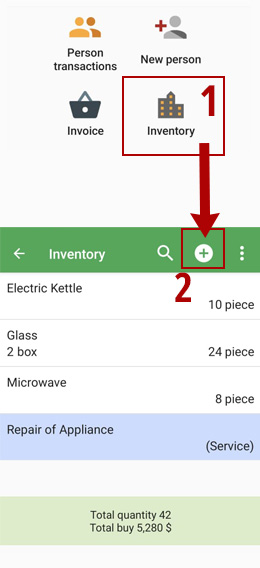
After selecting the inventory, you will see a list of the products and services
in the inventory along with their current stock levels.
To add a product or service, tap the "Add Item" button.
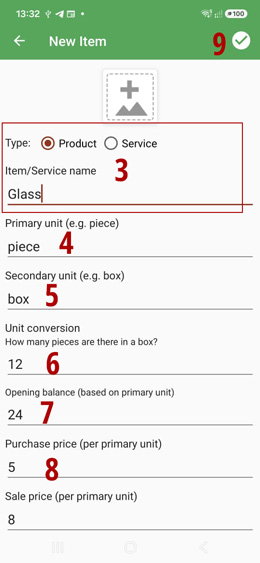
Select the product or service type, and enter item name.
Enter the first unit for the product, for example, "Piece".
The second unit is optional. If needed, enter it, for example, "Box".
In the unit ratio field, specify how many pieces are in each box.
In this example, the number 12 means that each box contains 12 glasses.
Enter the opening balance based on the first unit.
In this example, the number 24 means that the opening balance of glasses
in the inventory is 24 pieces, or 2 boxes.
Enter the purchase and selling prices based on the first unit
(i.e., "Piece").
If needed, scan the barcode using your phone's camera, assign picture, and enter VAT (tax information).